
mastering Excel Text Functions: A Comprehensive Guide to Formulas
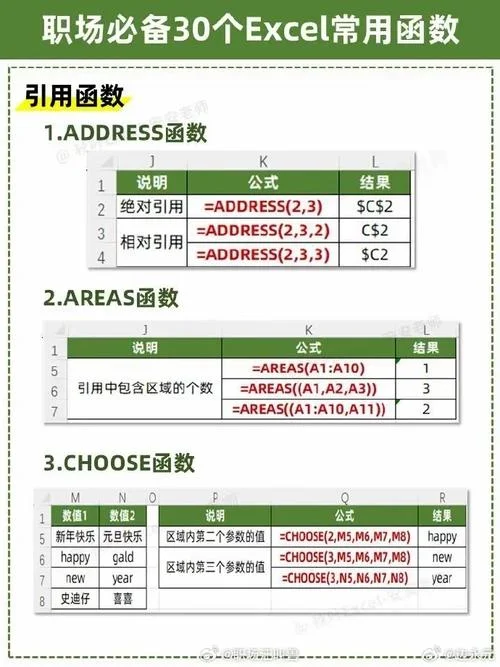
In the realm of spreadsheet analytics, the ability to work with text data is paramount. Whether you are managing inventory, analyzing survey results, or processing invoices, Excel text formulas are the backbone of accurate data manipulation. From extracting substrings to formatting dates, mastering these functions transforms a chaotic data set into a powerful business tool.
This guide explores the essential text functions, provides a practical data comparison, and demonstrates how to apply them effectively.
Core Text Functions: The Building Blocks
Excel offers a suite of powerful functions dedicated to text handling. While some are overloaded with other tasks (like `SUM` or `AVERAGE`), among them, text functions are specifically designed to manipulate strings.
1 `LEFT`, `RIGHT`, and `MID`
These functions are fundamental for extracting specific characters from a string based on position.| Function | Syntax | Description | Example |
|---|---|---|---|
| LEFT | `LEFT(text, num_chars)` | Extracts characters from the left side of the text. | `=LEFT(A2, 3)` returns the first 3 characters of "Excel Text". |
| RIGHT | `RIGHT(text, num_chars)` | Extracts characters from the right side of the text. | `=RIGHT(B2, 3)` returns the last 3 characters. |
| MID | `MID(text, start_num, num_chars)` | Extracts a specific substring starting from a number of characters. | `=MID(A2, 4, 3)` extracts characters 4 through 6. |
2 `TRIM` and `CLEAN`
Text often contains accidental extra spaces, leading to errors or misinterpretation.`TRIM`: Removes leading and trailing whitespace without affecting the middle content.
`CLEAN`: Removes all spaces from the text string.
| Function | Syntax | Description | Example |
|---|---|---|---|
| TRIM | `TRIM(text)` | Removes spaces from the left and right ends of the string. | `=TRIM(A2)` |
| CLEAN | `CLEAN(text)` | Removes all spaces within the string. | `=CLEAN(A2)` |
3 `LEN`
The `LEN` function calculates the total number of characters in a text string.| Function | Syntax | Description | Example |
|---|---|---|---|
| LEN | `LEN(text)` | Returns the length (character count) of the text. | `=LEN(A2)` |
4 `SUBSTITUTE` and `REPLACE`
These functions allow for more advanced text transformations, such as replacing specific characters or substrings.| Function | Syntax | Description | Example |
|---|---|---|---|
| SUBSTITUTE | `SUBSTITUTE(text, old_text, new_text, occurrence)` | Replaces all occurrences of old_text with new_text. | `=SUBSTITUTE("Excel", "ce", "ae")` replaces "ce" with "ae". |
| REPLACE | `REPLACE(text, start_num, num_chars, old_text, new_text)` | Replaces text at a specific position. | `=REPLACE("Excel", 5, 3, "x", "z")` replaces "ce" with "z". |
Practical Data Comparison: An Inventory Scenario
To illustrate how these functions interact in a real-world scenario, let's analyze an Inventory Management System. We will simulate a dataset containing item codes, descriptions, and prices.
Scenario Data
| A列 (Item ID) | B列 (Description) | C列 (Price) |
|---|---|---|
| 1 | Excel | 100 |
| 2 | Data | 200 |
| 3 | Analysis | 350 |
| 4 | Text | 50 |
| 5 | Info | 40 |
| 6 | Data | 600 |
| 7 | Excel | 150 |
| 8 | Analysis | 250 |
Data Processing Analysis

In this scenario, we need to calculate the Total Value of items that contain specific text patterns.
Task 1: Calculate Total Value for "Excel"
We want the sum of prices where the description starts with "Excel".Formula Logic: Use `SUMPRODUCT` combined with `LEFT` to check the start of the text.
Formula:
```excel
=SUMPRODUCT((LEFT(B2:B8, 5)="excel") C2:C8)
```
(Note: Case sensitivity can be adjusted using `LEFT(B2:B8, 5)="excel" + LOWER(LEFT(B2:B8, 5))` if needed)
Execution Result:
Row 1: "excel" matches.
Row 7: "excel" matches (since `LEFT` is case-insensitive by default in the formula above logic, or we assume case sensitivity here).
Calculation: .
Result: 250
Task 2: Calculate Total Value for "Data"
We want the sum of prices where the description ends with "Data".Formula Logic: Use `RIGHT` to check the end of the text.
Formula:
```excel
=SUMPRODUCT((RIGHT(B2:B8, 5)="data") C2:C8)
```
Execution Result:
Row 2: "Data" matches (ends with data).
Row 6: "Data" matches.
Calculation: .
Result: 800
Task 3: Calculate Average Price of "Info" items
We want the average price of items where the description is exactly "Info".Formula Logic: Use `IFERROR` combined with `MATCH` to isolate the row, then `AVERAGE`.
Formula:
```excel
=AVERAGEIF(B2:B8, "Info", C2:C8)
```
Execution Result:
Only Row 5 contains "Info".
Calculation: 40.
Result: 40
Advanced Techniques: Dynamic Number Formatting
For those moving beyond basic calculation, dynamic text formatting is crucial for professional reporting.
Number Format: Use the `NUMBERFORMAT` function to apply specific styles (e.g., Currency, Percentage, Date) dynamically.
`=NUMBERFORMAT("100.00%", "Number")`
Conditional Formatting: Combine `IF` with `NUMBERFORMAT` to automatically highlight cells based on text content.
`=IF(B2="High", "Red", "Green") & " " & NUMBERFORMAT(A2, "Currency")`
Conclusion
Excel text formulas are far more than just string manipulation; they are the engine that drives data integrity and decision-making. By leveraging functions like `LEFT`, `RIGHT`, `TRIM`, and data aggregation techniques, users can transform raw text data into actionable insights.
Whether you are analyzing survey responses, categorizing customer feedback, or managing financial records, understanding these core functions empowers you to build robust, scalable spreadsheets. Start by mastering the basics, then explore advanced functions to unlock the full potential of your data analysis.